Shopify store redesign: what to change first, when to adjust instead, and how to do it without breaking the store
A Shopify store redesign works when it starts from evidence: find out what loses shoppers today, change those things first, and keep what already converts and ranks. Redesigning by taste, or all at once, is how stores lose sales and search rankings in the same month. Often the evidence says the answer is a handful of adjustments, not a new theme.
In the video, a real store with weak ad returns sits beside a top store in its niche. Use that comparison as the brief for a redesign: you are not trying to make your store prettier, you are trying to make it the one shoppers pick over the store next to it. Everything below follows from that.
Want the evidence for your own store before you read on? Find what to redesign first on your store →
Should you redesign your Shopify store or adjust it?
In our experience, many stores need a few specific problems fixed more than they need a new design. The hard part is knowing which. Baymard Institute's product page benchmark (updated March 2026, 155+ sites) rated 52% of desktop and 62% of mobile product page experiences as mediocre or worse. That sounds like a case for redesigns, but the same benchmark lists specific, fixable gaps: 57% of sites don't use buttons for size selection, 67% don't show an estimated total order cost near the buy button and 44% don't link or display the return policy on the page. Those are elements, not themes.
Use this rule: adjust when the problem sits in one place, rebuild a template when the theme itself blocks the fix, and redesign the whole journey only when the structure is the problem. Answer the three questions in the diagram in order and stop at the first yes.
Step 1: audit what loses shoppers today
Evidence before taste. You need to know where shoppers drop and what they see when they do. By hand, that takes three things:
- The funnel. In Shopify's Conversion rate breakdown report, described by Shopify as a funnel from all sessions to sessions that completed checkout, find the step with the biggest drop. Check Sessions by device too: a drop that only happens on phones points at the mobile layout, not the brand.
- The first screen. Hand a phone to someone who doesn't know the store, let them look for five seconds and ask what it sells and for whom.
- The store next to you. Open your best seller beside the leader in your niche, on a phone, and write down what they make easier. That list is your redesign brief.
The hard part by hand is the third one: seeing your own page as a stranger would. You have looked at it too many times. That is where an outside read helps.
What an audit of a real home page flagged, and what it would take to fix
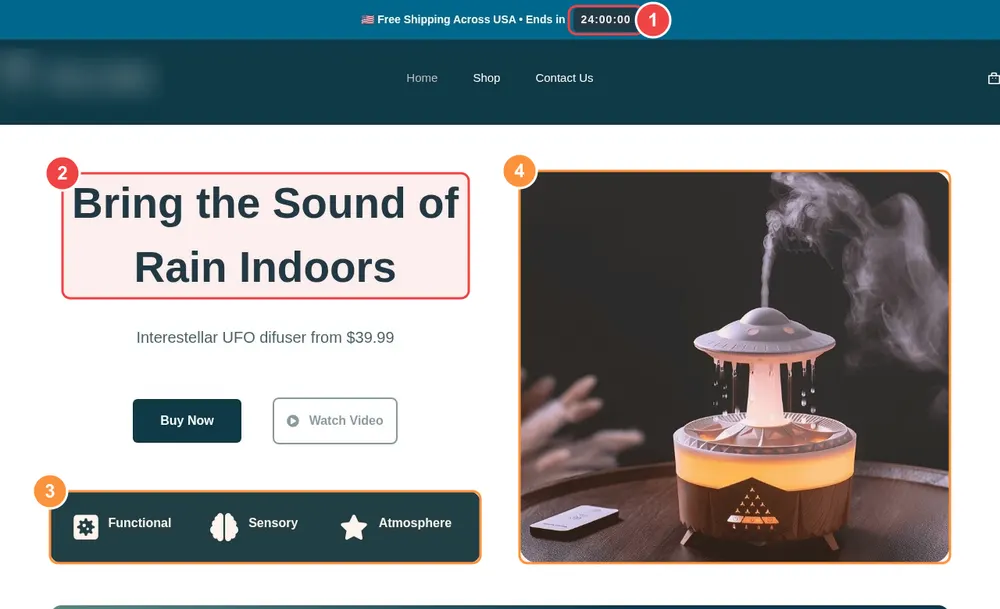
This is the home page of one of the owner's own stores (home decor, name hidden), audited on 2026-10-21. The numbered boxes were placed by hand on the element each finding names: the audit's own pin coordinates were approximate, so read the finding text, not just the pin. EliteVault's verdict was "not ready for paid traffic". Four findings, in the order the audit listed them:
- High: a countdown timer in the top bar (it reads 24:00:00) that the audit took for a fake urgency tactic. Fix: remove it.
- High: the hero headline names an experience but gives no reason to buy this brand. Fix: a benefit-led headline.
- Medium: three icons labeled "Functional", "Sensory" and "Atmosphere" say nothing concrete. Fix: replace them with real product benefits.
- Medium: the hero photo shows the product alone, not in a real room. Fix: lifestyle photography.
Notice what the list does not contain: a new theme, a new layout or a new navigation. All four findings are changes to elements on the existing page. This is the point of auditing first: on this store the right answer was an adjustment, not a redesign. The audit ranks the findings by severity; the effort is our own estimate. Removing the timer and rewriting the headline and the icon labels is an afternoon of work. The photography needs a shoot, so it is the only expensive item, and it can wait while the other three ship.
Run the same check on your own page. See what an audit flags on your store →
On the plan question: anonymous visitors and Free accounts get the annotated screenshot, every problem and the first fix, which is enough to answer "adjust or redesign?". The rest of the fixes and their how-to open with a one-time $7 unlock for that audit, or with Pro ($19 a month) if you audit several stores or re-check after every change.
Step 2: rank the changes by impact and effort
Take your findings and put each in one of three buckets: quick (an afternoon), medium (a few days) or heavy (needs new photos, a new template or development). Ship the quick, high-impact ones first. In the audit above that is the timer and the headline; the photography goes on the list for later. Nothing is lost by waiting, and you will see whether the quick changes moved the numbers before you pay for the expensive one.
If you are tempted by a full redesign, check it against the ladder below. Every level up adds something you must protect.
Step 3: protect what already works
A redesign can break three things quietly: your search visibility, your speed and your tracking.
- URLs. A new theme alone does not change your URLs. If your redesign changes them (new collections structure, renamed products), follow Google's guidance in How to move a site: map every old URL to its new one, use permanent server-side redirects straight to the final destination (no chains), keep them for as long as possible (generally at least a year), and verify the site in Search Console. In Shopify, redirects live under Content, Menus, View URL Redirects; the page notes you can bulk-import them from a CSV and that a standard store can hold up to 100,000.
- Speed. New visuals and apps are the usual cause of a slower store. Test before and after in PageSpeed Insights; Google's web.dev guidance treats a Largest Contentful Paint of 2.5 seconds or less as good.
- Tracking. Confirm your analytics and ad pixels still fire on the new templates before you send traffic.
Step 4: build it where it can't hurt you
Work on a copy. Per Shopify's help page on duplicating themes, go to Online Store, open the menu of your theme and choose Duplicate; the copy appears as "Copy Of" followed by the original name, and your admin can hold up to 20 themes. Edit the copy, preview it on a real phone, and publish only when it passes your checklist. Change one section at a time so you know which change moved the numbers.
When you rebuild the product page, which is where most redesign effort pays back, start from what shoppers need to decide. Baymard's benchmark found that 60% of users look for return policy information on the product page, and that 42% try to judge size from product images. Our guide to the Shopify product page goes through the twelve elements one by one.
What should you check before and after you publish?
A redesign that changes URLs, titles or templates needs a launch checklist. None of these items needs a tool you don't already have:
- Before: export the list of your current URLs and note which ones get traffic in Search Console. Those are the pages you must not lose.
- Before: write down your baseline numbers (conversion rate, add-to-cart rate, mobile share) and your current Largest Contentful Paint.
- Before: keep page titles, meta descriptions and the main heading of pages that rank, unless you have a reason to change them. Changing them is a separate decision you can measure on its own.
- At launch: open every redirect you created and confirm it lands on the final page in one hop. Check the checkout, the cart and a test order on a phone.
- After: resubmit your sitemap, watch Search Console for new errors and compare impressions for the pages you moved. Per Google, keep redirects for at least a year.
- After: confirm your analytics and ad pixels still fire on every template.
What drives the cost and time of a redesign?
We don't quote prices because they vary by provider and scope (our guide to CRO audit cost shows how widely published quotes differ). What decides the bill is the same in every case: how many templates change (home, collection, product, cart), whether you need new photography, whether apps or custom code must be rebuilt, and whether URLs move. A change limited to one section of the product page costs a fraction of a new-theme project, which is the strongest argument for finding out first what actually needs to change.
Step 5: measure before and after
Write down your baseline before you change anything: conversion rate, add-to-cart rate and mobile share from Shopify's reports. After the change, compare equal periods and wait for enough sessions to mean something. Shopify's Conversion rate over time report shows the trend but does not split traffic between versions, so change one thing at a time. Then run the audit again: if the same finding appears, the change didn't fix it.
Which redesign mistakes cost the most?
- Starting from a template you like. A good-looking theme can still hide your offer or slow the page.
- Changing everything at once. You cannot tell what helped, or what hurt.
- Forgetting the URLs. Rankings you built over months can vanish when pages move without redirects.
- Copying the leader's look instead of its logic. What counts is clarity, proof and ease. Our guide to reverse-engineering winning Shopify stores shows how to take a leader apart without copying it.
- Ignoring phones. Check every change on a real phone, not a resized window.
Design trends are a separate question: see which ecommerce design trends actually convert before adopting one, and what a human must still check if AI builds part of the new design.
Redesign to beat the store next to you
The goal of a redesign is not a new look; it is a store that is easier to understand and trust than the one a shopper has open in the next tab. Audit first, change the highest-impact things, protect what works and measure. Our Shopify store audit (ours — full disclosure) does the first step for you: it reads your page like a first-time visitor and shows what to change first. If you suspect the problem goes beyond design, start with why your Shopify store isn't converting, and use the Shopify CRO audit checklist for a page-by-page check.
Frequently asked questions
How do I know if my Shopify store needs a redesign?
Look for evidence, not taste. If the funnel report shows shoppers dropping at one step, or an audit flags specific elements such as an unclear headline, hidden proof or a slow page, you probably need adjustments. A redesign makes sense when the structure of the journey itself is broken.
Will redesigning my Shopify store hurt my SEO?
It can if URLs change without redirects. Google recommends mapping every old URL to a new one, using permanent redirects straight to the final destination, keeping them for at least a year and verifying the site in Search Console. A new theme alone does not change your URLs.
How do I redesign my Shopify store without losing sales?
Work on a duplicate of your theme, change one section at a time, check each change on a real phone and compare conversion rate over equal periods before and after. Keep a record of your baseline numbers before you start.
What should I change first in a Shopify redesign?
Start with what the evidence ranks highest and is cheapest to fix: usually the first screen (a clear offer), proof near the buy button and shipping and returns information. Leave expensive items such as new photography for after the quick fixes show results.
How often should I redesign my Shopify store?
There is no schedule that works for every store. Redesign when the evidence says the current structure is holding sales back, not on a calendar. Small, measured adjustments after each audit are safer than infrequent large redesigns.